
How to: Edit Volunteer Positions & Opt-Out of Meets!
Hi Rapids,
I know you have all been patiently waiting and checking your email for this email...so here it is! A How-To on how to edit your job sign-up in Swimtopia and how to opt your child out of a meet if they WILL NOT be able to attend. **they are automatically assumed as attending even if you don't declare it in Swimtopia.
Opt-Out How to:
1. Login to your Swimtopia account with your email and password by going to rapids.swimtopia.com
2. Once logged in, click the Schedule/Swim Meets tab
3. Next to each regular season meet you should see green buttons and one that says: 'Meet Entry' Open. Click this 'Meet Entry' green button and you should see your swimmers!
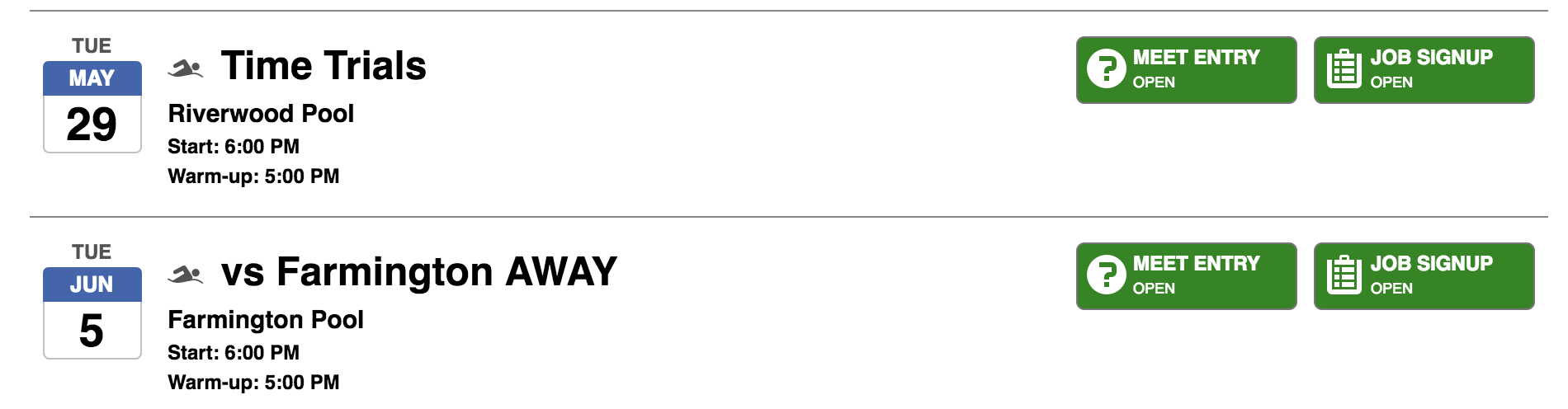
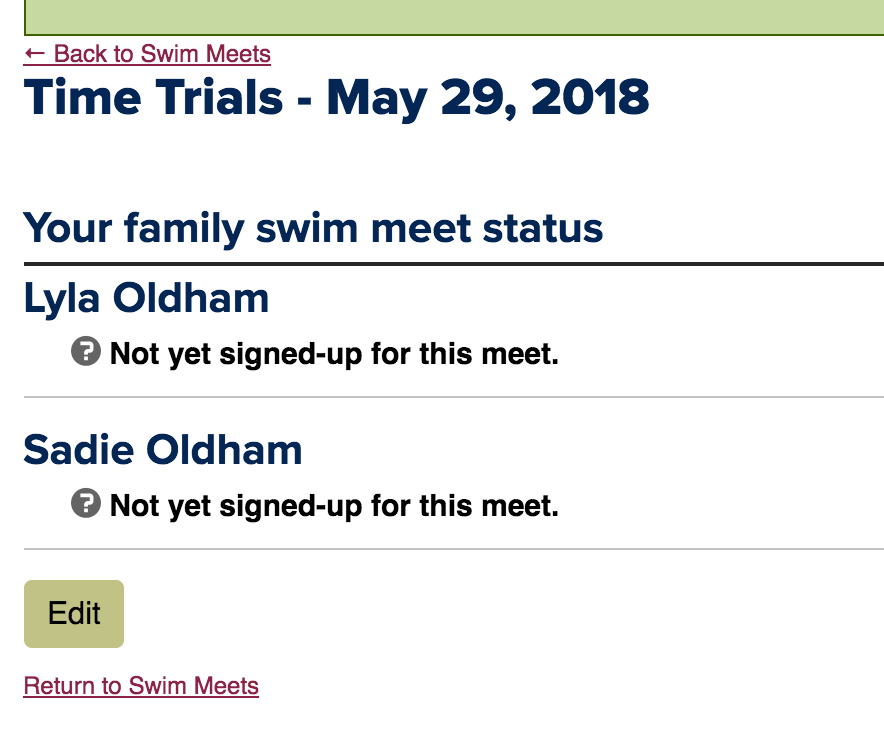
4. Select edit to change their status to 'Not Attending this meet' if they will NOT be able to.
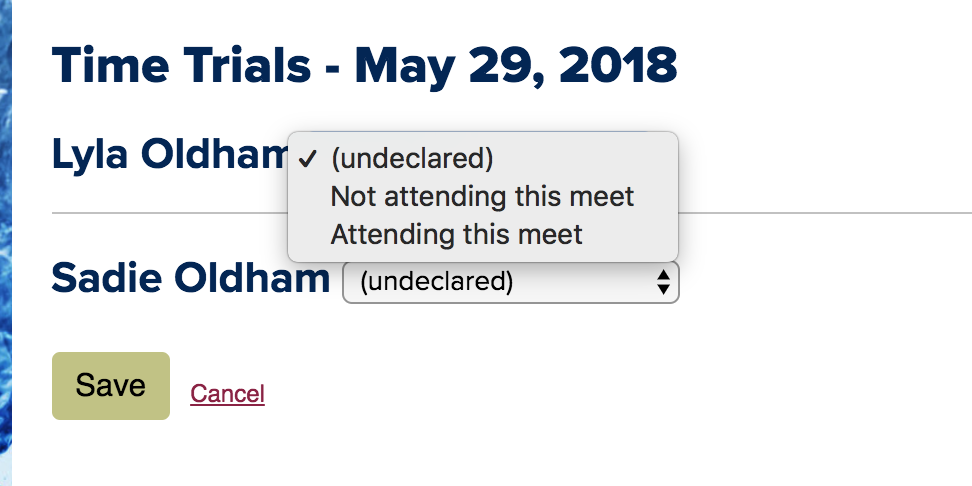
AND SAVE!
Volunteer Job Edits/Signup:
As you might have noticed in the Meet Entry, you will also be prompted with signing up for jobs for each meet and can go straight into job sign-up from there. The other way to see what jobs you are signed up for and make edits is to:
1. Login as above and this time click on the 'Job Signup' green button!
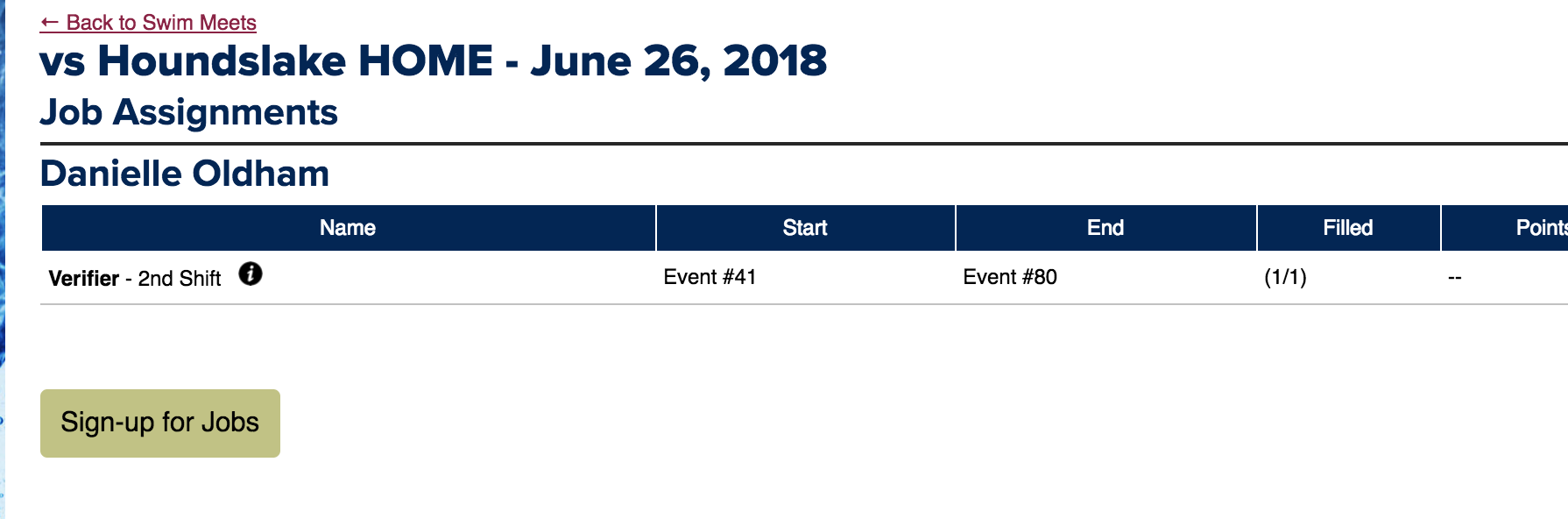
2. Here you will see what jobs you are signed up for and can edit them.
3. To edit, you need to click the button for Sign up for Jobs then you can switch around the checkboxes *For example, below I changed my job from Verifier - 2nd Shift to Stroke & Turn - 2nd shift by checking the box next to the job.
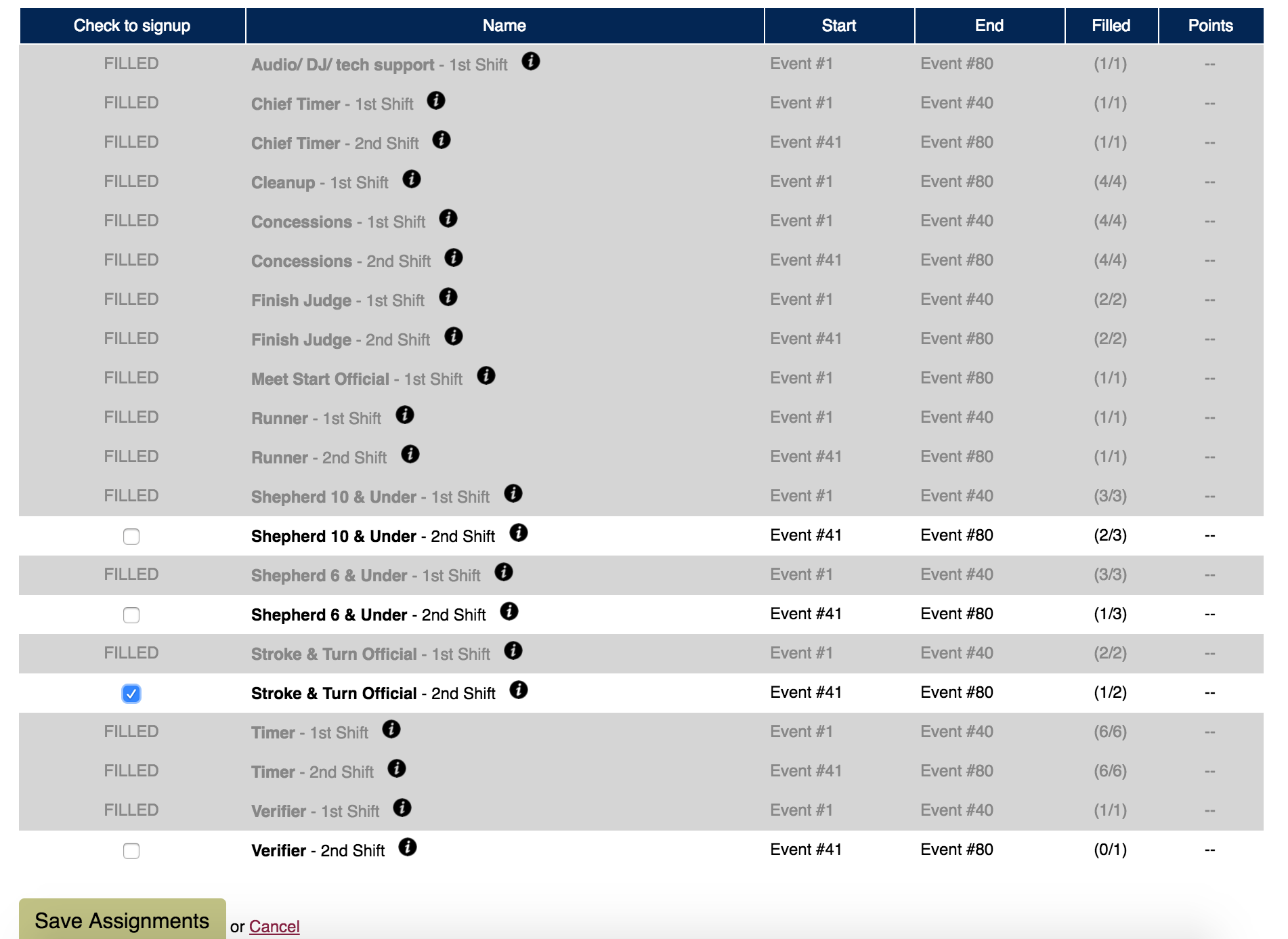
If you have any questions regarding how to opt your swimmer out of a meet, change or sign-up for jobs on Swimtopia, please don't hesitate to reach out!
Thanks! Go RAPIDS!


